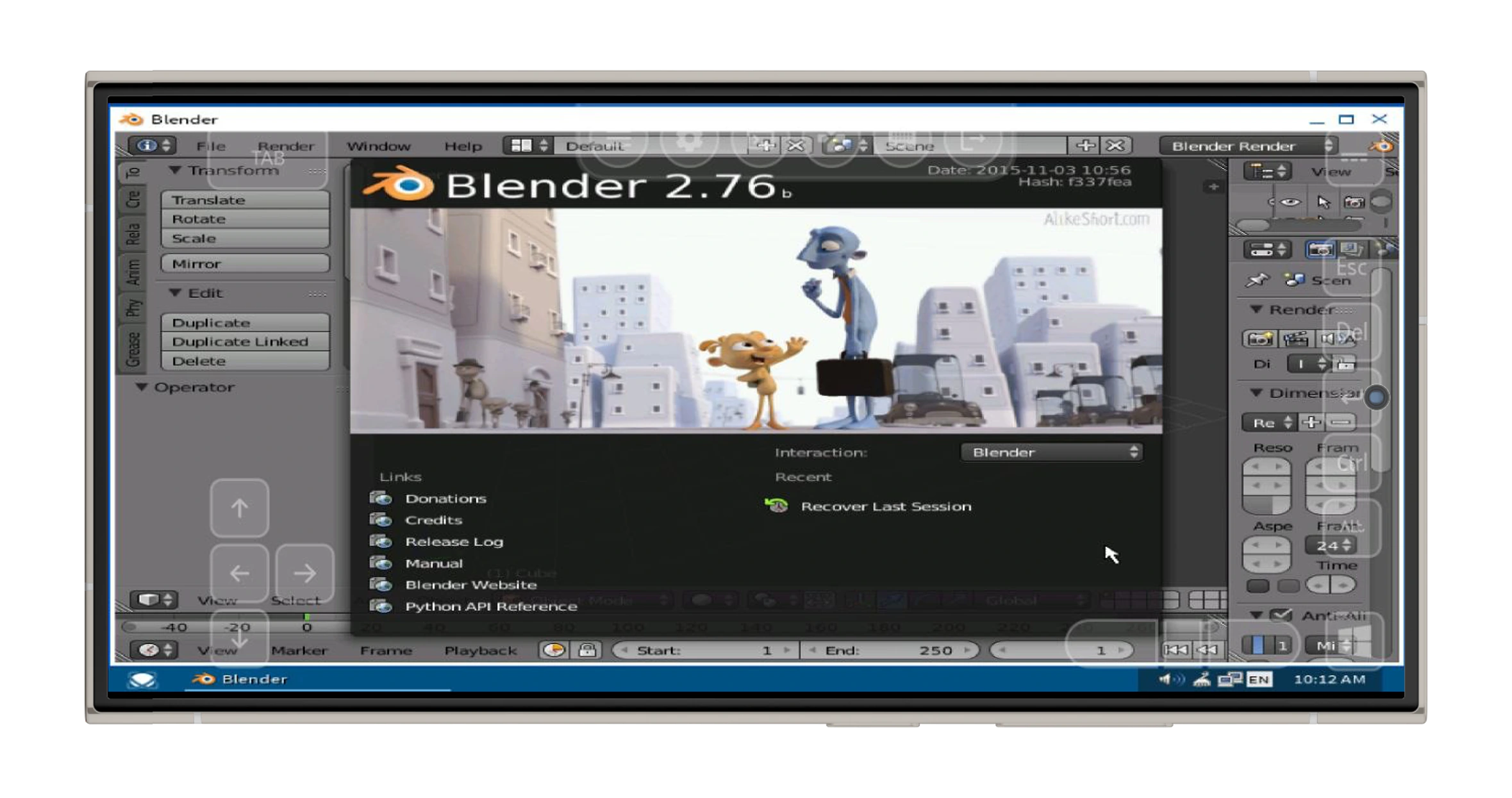
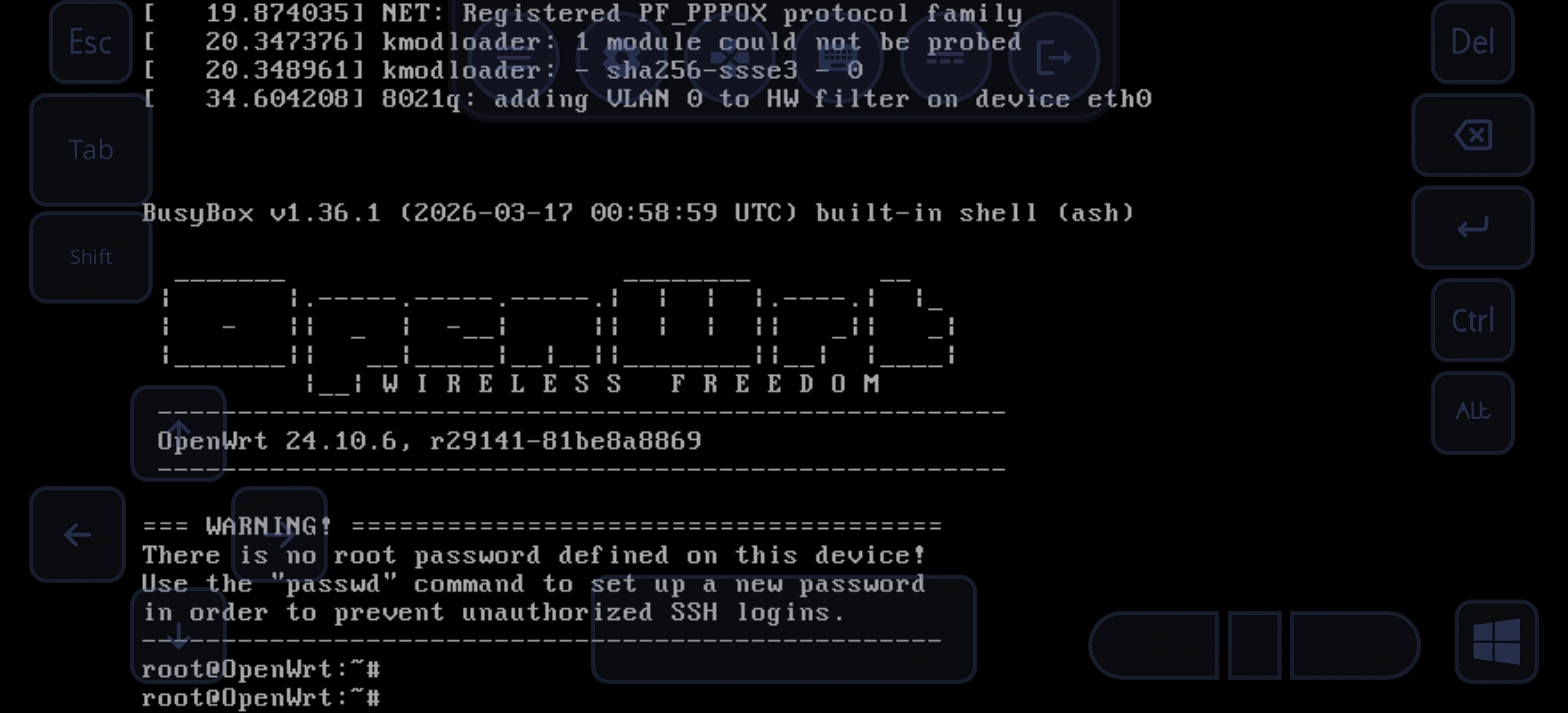
Configure your machine
Choose a CPU profile, virtual core count, memory, and boot settings. Premium lets you create a VM from your own ISO or disk image.
VM creationRun x86_64 guest operating systems on your phone or tablet. Manage your machines, connect your devices, and make room for a little more possibility.
Android 11+ · ARM64 device · Free download with in-app purchases
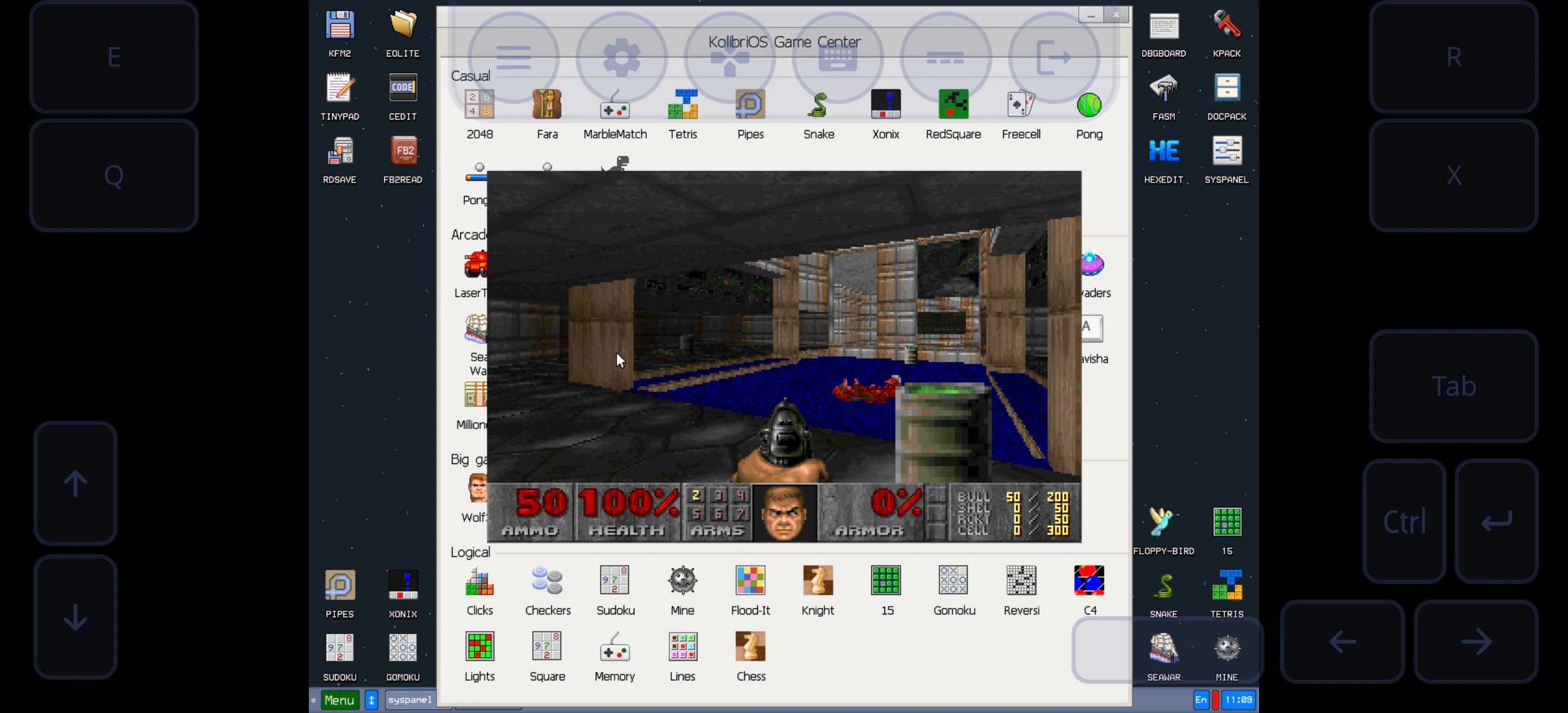
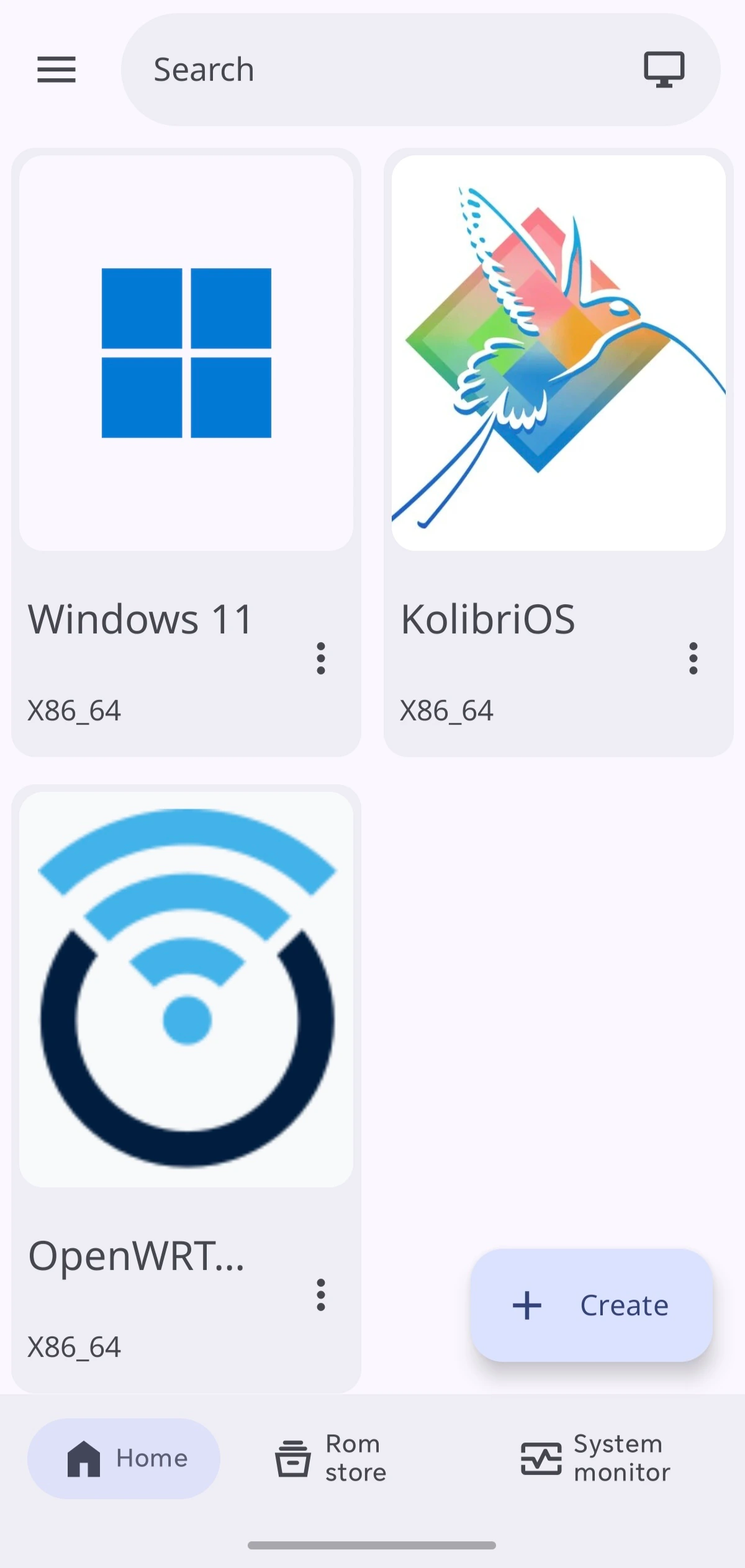
KolibriOS guest and VM library · Actual Vectras VM screenshots
From choosing a guest to controlling its desktop, the tools stay with you on Android.
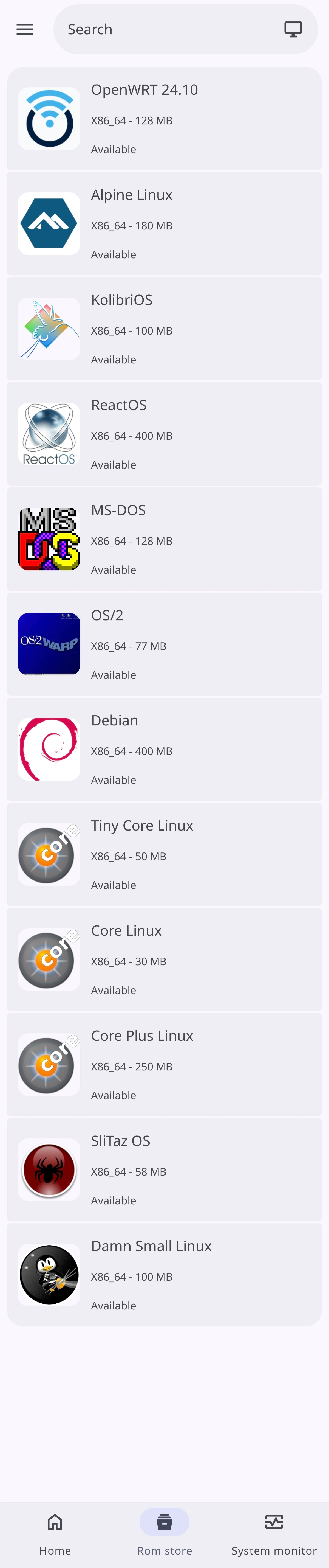
Browse the online ROM Store and download a prepared machine. Free users can start with entries marked as eligible for free access.
Screenshots show example configurations. Catalog availability, guest software, and interface details can vary by version. Free and Premium access is explained below.
Practical controls for the machine, its files, and the way you use it.
Choose a CPU profile, virtual core count, memory, and boot settings. Premium lets you create a VM from your own ISO or disk image.
VM creationCreate blank virtual disks, attach an installer, and manage supported removable media. Disk Creator includes qcow2, raw, VMDK, VDI, VHDX, and VHD formats.
Disk CreatorExport a stopped VM as a CVBI package. Premium users can import a compatible CVBI through Create ROM and bring an existing machine into Vectras.
Manage and exportUse the integrated SPICE viewer with desktop keys and pointer controls. Legacy VNC remains available when a guest needs a different display path.
Display and inputConfigure user networking and port forwarding, pass through USB devices, or share text and files. USB needs host support; SPICE sharing needs compatible guest agents.
USB and sharingUse System Monitor and runtime logs to investigate a session. Browse app-managed Images and Shared folders through Android Files.
Monitor and logsAvailable settings depend on the guest, your Premium entitlement, and any policy attached to a free ROM. Compare access.
Start with an eligible ROM Store machine, or bring your own image with Premium.
Complete first setup so the bundled QEMU runtime, firmware, and app-managed folders are ready. No separate QEMU installation is needed.
Free: install an eligible ROM Store entry. Premium: also import a CVBI or create an x86_64 VM manually.
For a custom VM, attach a disk or ISO and tune CPU, memory, display, network, USB, and sharing. Store machines arrive with a prepared profile.
Boot through SPICE, use the control overlay, and access media, USB, logs, and shutdown from the app. Shut down before exporting your VM.
Your Android device runs the emulator. The operating system inside the VM uses the x86_64 architecture.
Full requirementsA lightweight x86_64 Linux system is a practical starting point. The setup guide suggests 1–2 virtual cores and 1–2 GB of guest RAM, with headroom for Android.
An ARM64 phone is executing x86_64 instructions through QEMU. Speed depends on the guest, storage, memory, and device cooling. More allocated resources are not always faster.
OS versions and applications have their own hardware and driver needs. USB, clipboard, networking, and file sharing also depend on compatible guest support.
| Android device | Android 11 or newer, with 64-bit ARM Android. A 64-bit chip running 32-bit Android is not enough. |
|---|---|
| Guest images | x86_64 / AMD64 PC images. ARM64, Raspberry Pi, and PowerPC guest runtimes are not included. |
| Emulator | Bundled QEMU 10.0.2 with TCG full-system emulation. |
| Display | SPICE by default. Legacy VNC is available in settings while the VM is stopped. |
| Storage | Room for the downloaded package, extracted disk, temporary files, and future guest writes. |
| Active sessions | One running VM at a time. Return to its display or shut it down before starting another. |
Applies to the documented Play Store release, version 1.1.1 / build 122.
Vectras can emulate an x86_64 PC, but that does not guarantee every OS version or application will work. Check the specific guest requirements and use installation media you are entitled to run. Screenshots and community videos are examples, not a device benchmark or a blanket compatibility certification.
Guest operating systems and commercial software licenses are not included unless a ROM Store entry explicitly provides them. Read the current compatibility guide.
Try eligible machines from ROM Store, or unlock the workflows for your own images.
Download entries marked as available for free users. Each machine comes with its own configuration and access limits.
Create from an ISO or disk image, import CVBI packages, and access Premium catalog entries and settings.
| Capability | Free | Premium |
|---|---|---|
| ROM Store | Eligible free entries | Free and Premium entries |
| Create from ISO or disk | Premium required | Included |
| Import your own CVBI | Premium required | Included |
| CPU, RAM, and settings | Limits assigned to each ROM | Per-ROM free limits bypassed |
| Session duration | Varies by ROM; some are time-limited | No per-ROM free session limit |
| In-app ads | Contains ads | Removed |
| Picture-in-Picture | Premium required | On supported Android devices |
| Guest architecture | x86_64 | x86_64 |
Free ROM policies can also control networking, drive changes, and extra QEMU parameters. Premium does not change hardware compatibility or guarantee guest performance.
Access detailsThe app and Google Play purchase screen show the price and billing period before purchase. Subscriptions automatically renew unless canceled through Google Play. Eligible free features remain available without a subscription. Subscription terms.
Use Restore in the app's subscription dialog to check an existing purchase with the Google Play account used to buy it. Manage or cancel through Google Play subscriptions. Uninstalling the app does not cancel your subscription.
Vectras LLC develops Vectras VM for Android. The project grew through community releases and continues on Google Play with integrated VM management and display controls.
Vectras VM uses open-source components, including QEMU. Component source is available through the Vectras Team GitHub organization, with license notices in the app's About area.
Components at vectras-teamFor the current Android app, updates, and subscriptions, use the official Google Play listing.
The original public repository's release-download total is tracked by Shields.io. This counts release downloads, not unique users or Google Play installs.

A GitHub Trending milestone recorded by Trendshift for the original Vectras VM repository.
Check the essentials here, or open the guides for your next step.
The guest runs through QEMU on your Android device. Vectras is not streaming a cloud-hosted PC. The ROM Store, downloads, advertising, and purchase services use network connections; enabling guest networking also uses your Android connection.
Choose x86_64 or AMD64 PC media for the current runtime. ARM64 phone hardware does not mean ARM64 guest images will work. Avoid Raspberry Pi, PowerPC, and Android APK files as VM disks. Check the requirements guide before downloading a large image.
Manual Create ROM and importing your own CVBI are Premium workflows. Free access starts with eligible ROM Store downloads. Each free ROM has its own policy for settings and session duration. Compare Free and Premium.
Full-system emulation needs CPU time, memory, and storage. Start with a lighter guest, reduce allocated RAM, close other heavy Android apps, and leave cooling and storage headroom. Inspect runtime logs if a launch fails; an incorrect image, boot order, or device setting can also stop a guest.
USB passthrough needs Android USB host support, permission, a suitable connection or OTG adapter, and a guest driver. SPICE clipboard and shared drive need compatible guest services such as spice-vdagent and spice-webdavd. Linux 9p sharing needs guest kernel support.
No. In version 1.1.1, Android Back returns to Home while the VM can remain active. Use Back to display or the ongoing notification to reopen it. Shut down the guest explicitly when you are finished. A free ROM's session timer can continue while its VM is running.
A short, reproducible report helps us understand the problem. Include:
Remove passwords, tokens, and private file paths. Do not attach personal VM disks. Read the reporting guide.
Vectras VM for ARM64 Android devices, Android 11 and newer.